MCP capability reference
Everything the connector exposes once a scene is published — the tools your assistant can call, the interfaces it opens in the conversation, and the controls you use to decide who gets what.
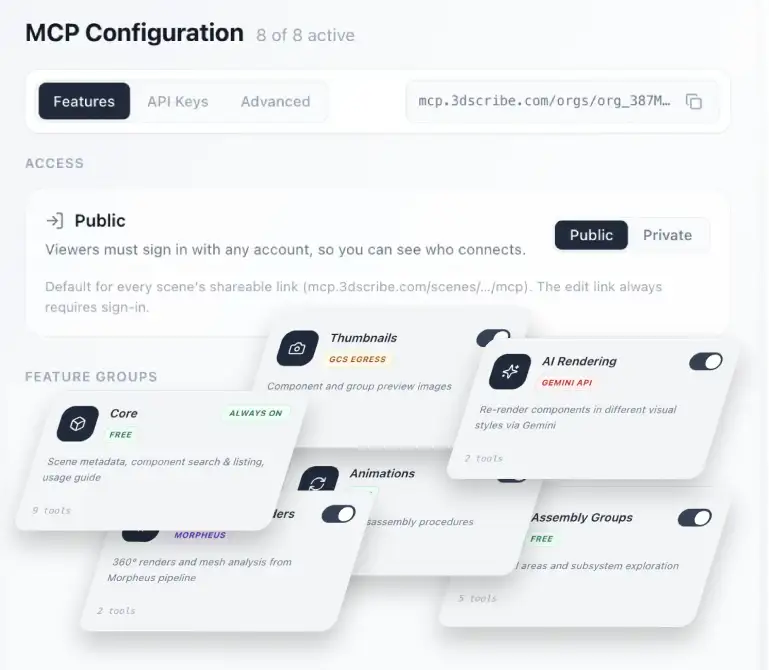
Once a scene is published it exposes a connector: a set of tools your assistant can call, a set of interfaces it can open inside the conversation, and a set of controls you use to decide which audiences reach which parts of that. This page is what’s behind the URL you pasted in.
You never call these tools by name. You ask in plain language and the assistant chooses — this reference exists so you know what’s possible, and so you can reason about what to switch off.
What the end-user connector exposes
Thirty-four tools, grouped by the question a person actually asks — you never call them by name.
Thirty-four tools, grouped here by the question a person actually asks rather than by their internal names.
Find a part. By name, function, material or description — returning a card with its photo, category and specifications.
Browse everything. An interactive catalog, scrollable and searchable, filterable by assembly.
Place it in context. Highlight the part where it sits, and spin a 360° turntable of just that assembly.
Measure it. A dimensioned diagram built from the model geometry, in real units.
Understand what it touches. Contacts, neighbours, and what has to come off first.
Walk a procedure. A step-by-step guided tour with the camera moving to each step.
Render a finish. Generate an image of the part in a described material.
Search the documents. Query the manuals and specifications attached to the scene.
Answers that are interfaces
Nine responses open a real interface inside the conversation rather than returning a paragraph. This is the part that behaves unlike other integrations — the answer to “which bolt?” is the bolt, highlighted, from the right angle.
Nine responses open a real interface in the conversation. The answer to “which bolt?” is the bolt, highlighted.
Scene overview
Component explorer
Assembly explorer
Dimensioned diagrams
Render gallery
Tour navigator
Animation player
Knowledge base
Image viewer
Each is scrollable, searchable and clickable in place. Nobody has to leave the assistant to look something up.
The creator connector
A second connector adds eight tools on top of the thirty-four, for people who build scenes rather than consume them. It is the same scene, addressed with editing rights.
Check production state — which phase a scene is in: processing, analysing, naming, or analysed.
Check publish readiness — what is still blocking a publish, from the same validator the deploy itself uses, so there is no second set of rules to drift.
Publish — which refuses while blockers remain, and asks before overwriting a scene that is already live.
Rewrite a component description or change a part’s material.
Open in Studio — grouping meshes, recording tours and swapping models stay browser work, so the connector hands back a link that opens that scene rather than refusing the request.
Read engagement — who opens a scene, what they do in it, and which tools the assistant reaches for.
Read workspace settings — plan, company, scenes used and remaining.
Drafts work here. You can inspect and edit a scene before it is ever public, with cover images and component thumbnails rendering in the assistant.
Public or private per scene, capability groups per organisation, and scoped API keys — all enforced end to end.
Deciding who gets what
Everything below is enforced end to end — the settings page, the scene endpoint and the organisation endpoint all agree, so what you configure is what actually happens.
Public or private, per scene or per organisation. Private checks the connection against your organisation’s membership.
Capability groups, switched off per organisation. A customer-facing connector can offer browsing and tours without exposing render generation.
API keys for machine-to-machine use, revocable, each pinnable to specific capability groups.
Rate and length limits per organisation on image generation.
Custom instructions appended to what the assistant is told about your scenes.
Signed, expiring media URLs. Nothing in a scene is served from a public bucket.
Say this accurately when asked: “public” means any signed-in account, not anonymous. There is no anonymous access to a connector — every connection authenticates. Public versus private is about which accounts, not about whether there is a login.
It carries your brand, not ours
Colours, fonts, logo and welcome message come from your configuration and render inside the customer’s assistant. There is no 3DScribe mark anywhere on the media — if you haven’t set a logo, no logo appears.
One connection, one scene
A connector addresses a single published scene, which is why naming each one after its product matters once you’ve connected more than one. For a portfolio, a catalog mode addresses multiple scenes from a single connection.
Getting good answers
Concrete references land best — a named part, an assembly, a procedure. “How does the pump come apart?” is grounded in what the scene contains; “what would cause a rattle?” asks the assistant to reason past it. The first is what this is built for.
Some answers are derived rather than looked up — a weight estimated from solid volume, for instance. Those are design guidance rather than measurements, and the assistant says so when it’s estimating.